Quick Start
Get productive with Ticku in five minutes.
1. Open Ticku
- In Microsoft Teams: click the Ticku tab — you're signed in automatically.
- In a browser: go to your Ticku URL and sign in with Microsoft or your email and password.
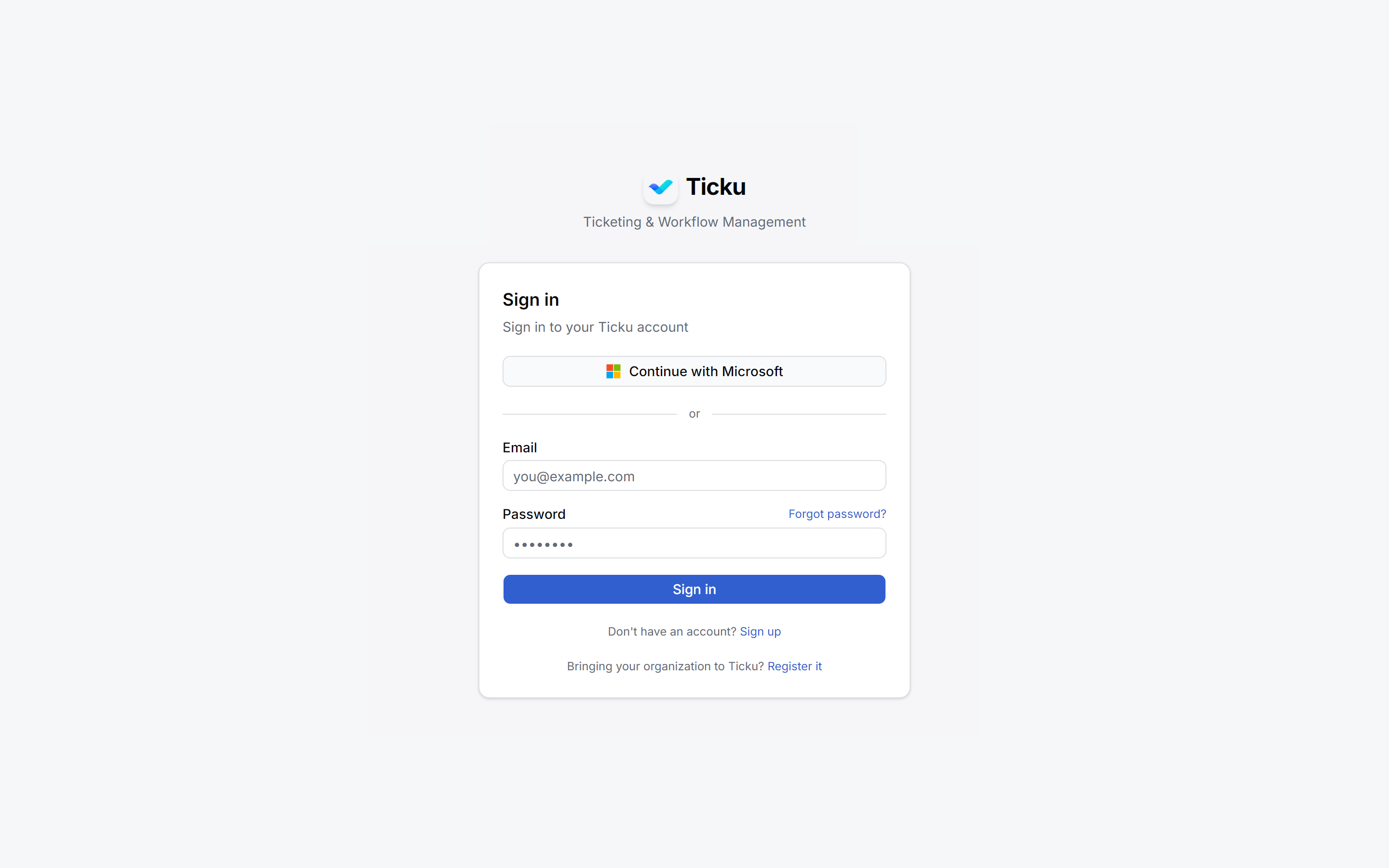
If your organization is new to Ticku, someone registers it first at /register-organization (verified by email OTP); after that, everyone at your email domain can sign in.
2. Pick your organization
If you belong to more than one organization (for example, your own company and a client's), use the tenant switcher to choose which one you're working in. Everything you see — projects, tickets, notifications — is scoped to the selected organization. See Multi-Tenancy.
3. Find your projects
The left sidebar lists every project you belong to. Each project has a type (Support, Consulting, Dev, or Epic) that shapes its hierarchy and workflow, and your role in it determines what you can do — see the Feature Matrix and Project Types.
4. Create your first ticket
- Open a project, choose a Subject (folder), and click New Ticket (requires a role that can create).
- Give it a title, description, and priority.
- For Consulting/Dev projects, set the planned start/end and estimate; for Support, the priority drives the SLA.
- Assign it to a teammate — they get notified immediately.
5. Track work
- Switch between list, grid, kanban board, and timeline views.
- Drag cards across the kanban board to change status.
- Escalate urgent tickets, log your time or a work-log entry, and watch the SLA bar on Support tickets.
6. Collaborate
- Comment on tickets and sub-tasks; use @mentions to notify a teammate, reply to thread the discussion, and react with an emoji.
- Attach files directly to tickets.
- Add a follower to loop someone in on one ticket without giving them the whole project.
- Set your notification preferences under Settings → Notifications to control how much you hear.
:::tip Take the tour The ? icon in the header starts a guided product tour of whichever screen you're on. It never launches by itself — replay it any time. :::
→ Next: Working with Tickets