Bulk Upload
Bulk Upload lets you create many Subjects, tickets, and sub-tasks at once using an Excel-style paste grid — ideal for standing up a plan you've drafted in a spreadsheet. Open it at Settings → Bulk Upload.
Templates
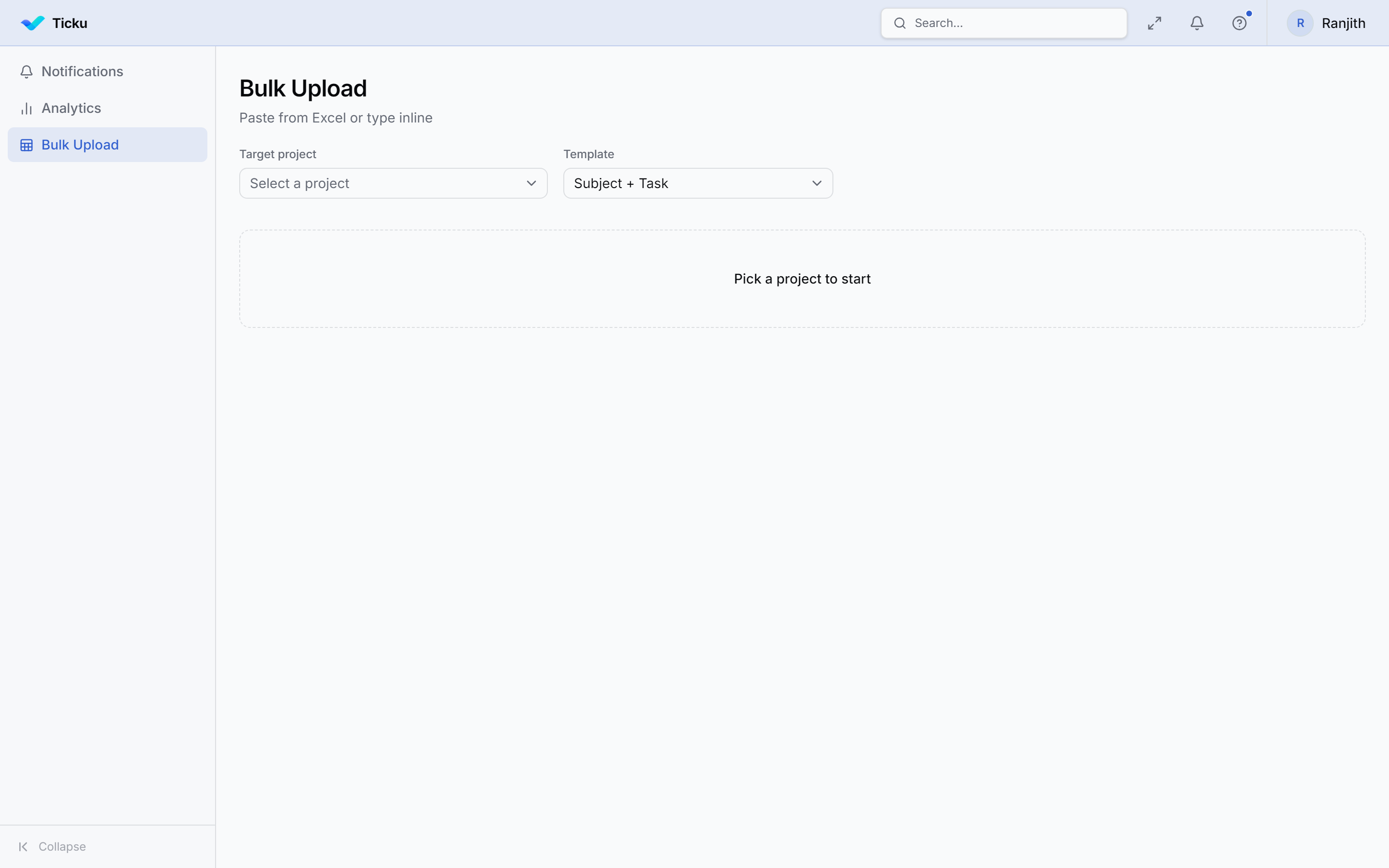
Pick a target project, then a template that matches how your spreadsheet is laid out. The template decides which columns the grid shows and how rows nest.
| Template | Layout |
|---|---|
| Subject + Task | One row per Task — Subject (Milestone) then Task (Activity), with planned dates and hours |
| Subject + Type + Name | Subject, a Type (Task / Sub-task), and the item name. Sub-tasks attach to the Task above them |
| Type + Name | A Type (Subject / Task / Sub-task) and the item name. Each row nests under the one above it |
| Tree | Outline layout with separate Subject, Task, and Sub-task columns. Leave a cell blank to inherit from the row above |
Every template also carries planned start, end, and hours columns.
Type values are matched forgivingly — case and hyphens don't matter, and "Milestone" is accepted as a synonym for "Subject".
:::info Consulting & Dev projects only Bulk upload targets Consulting and Dev projects (which use the P1/P2/P3 priority set). It is not available for Support or Epic projects. :::
The hierarchy you create
Subject
 └─ Task (ticket)
     └─ Sub-task
You paste rows for each level:
| Level | Fields |
|---|---|
| Subject | Name, description |
| Task | Title, description, priority (P1–P3), planned start/end, estimate hours |
| Sub-task | Title, description, priority |
:::note Subject dates are derived You don't set a Subject's start/end directly in bulk mode — the server derives a Subject's window from the earliest start and latest end of its tasks. The usual "start date required / must be in the future" rules are relaxed for bulk entry. :::
How to use it
- Choose the target Consulting/Dev project.
- Paste or type your rows into the grid (you can paste directly from Excel/Sheets).
- Review the parsed structure.
- Submit — everything is created in one operation.
Who can use it
Bulk upload creates Subjects, so it requires the subject-creation permission — by default the Lead role of a Consulting/Dev project. See Roles & Permissions.
Limits
Reasonable per-request caps apply (subjects, tasks per subject, and sub-tasks per task) to keep a single upload manageable.