Tenant Provisioning
Once the platform is deployed, you add customer organizations as tenants — no redeploy required. This is a platform-admin task. For the concepts, see Multi-Tenancy; for the in-app panel, see Tenants & Platform Admin.
Two ways a tenant is created
1. Manual (platform admin creates it)
A platform admin creates the tenant directly from /admin/tenants. It lands ACTIVE immediately. Provide:
| Field | Notes |
|---|---|
| Name | The organization's display name |
| Slug | URL-safe key for /t/{slug} routing — unique |
| Email domain | The company domain (e.g. acme.com) — unique; routes that domain's users into this tenant |
| First admin email | An address at the email domain. When they sign up they're auto-promoted to admin and default projects are seeded |
| Entra directory id (optional) | The customer's Azure AD tid, to enable verified SSO auto-approval |
2. Self-serve (customer registers, admin approves)
-
A prospective admin registers at
/register-organizationand verifies their work email by OTP.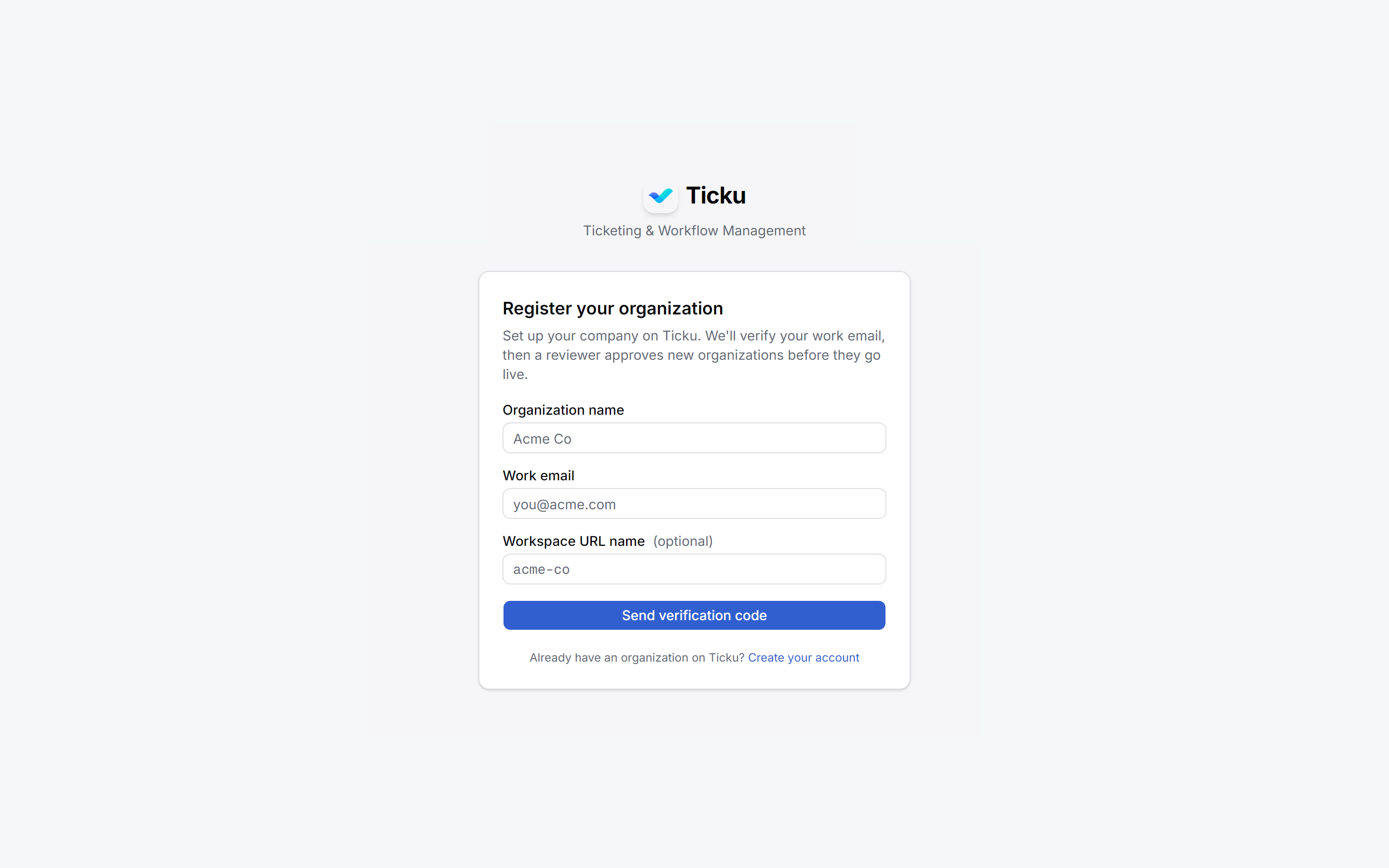
-
A tenant is created
PENDING_APPROVAL(rate-limited per IP). -
A platform admin approves (→
ACTIVE) or rejects it from the pending-tenants list.
See Authentication → Self-Serve Organization Registration.
After a tenant is active
- Users at the tenant's email domain can sign up and are routed in automatically (pending admin approval, unless they're the first admin).
- The first admin approves subsequent users, creates projects, defines roles, and configures the calendar and email — see the Admin Day-1 Checklist.
Lifecycle operations
| Operation | Effect |
|---|---|
| Suspend | Blocks login/API for the tenant; data stays intact; reversible |
| Restore (unsuspend) | Returns a suspended tenant to ACTIVE |
| Reject | Declines a pending self-serve registration |
Tenants are never hard-deleted — every child row uses a RESTRICT foreign key, so suspension is the way to cut off access without losing data.
Platform admins
- Restricted to the platform operator's own email domain (a build-time constant).
- At least one must always exist — the panel refuses to remove the last one.
- Bootstrap the first via
/setupon a fresh deployment (it refuses to run once any user exists).
Checklist for a new customer
- Confirm their email domain and pick a slug.
- Create the tenant (manual) or approve their self-serve registration.
- Optionally record their
entraDirectoryIdfor SSO. - Ensure the first admin signs in and completes the Day-1 Checklist.
- If they use email-to-ticket, help them connect a mailbox. There is no per-tenant Azure registration to create — mail runs on the platform app against the tenant's registered Entra directory.